
How to Learn FASTER With AI - Google NotebookLM
In this article, I provide an in-depth overview of Google's NotebookLM, compare it to ChatGPT's Study Mode, and share my insights on how to use this tool effectively for learning.
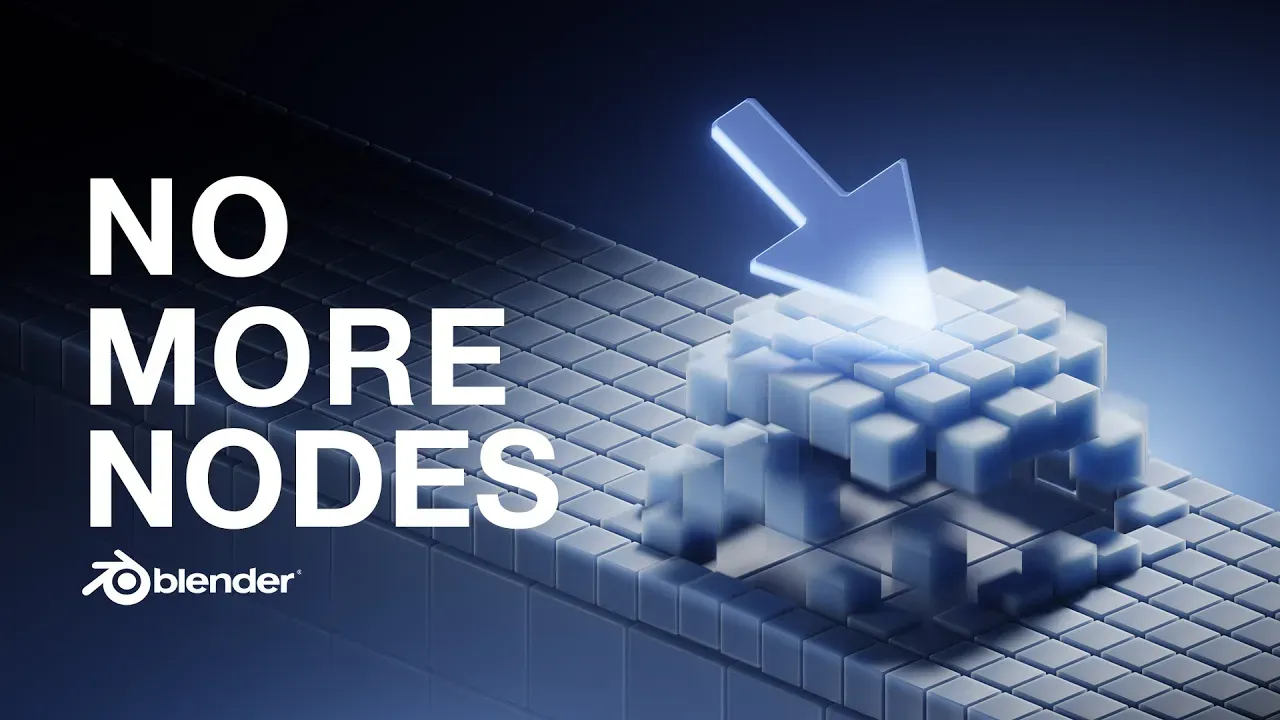
Blender 5.0 has released a few new modifiers like the array, instance on elements, and scatter on surface. These new modifiers make complex animations possible without having to start learning geometry nodes. Motion graphics in Blender is heavily reliant on geometry nodes, but with these new features, you can make some cool animations without nodes. Is this the end of nodes in Blender? Definitely not, but it definitely makes us less reliant on them when starting out.
You don’t need nodes anymore to get started making motion graphics in Blender. In Blender 5.0, there are a few new modifiers that let you use the power of geometry nodes, but you never have to touch a single node to be able to make some really cool stuff with them. So, today we’re going to look at a couple of those new features through making this animation.
Now, is it the end of nodes in Blender? Not exactly. These new modifiers make complex animations possible without needing to know how to use a node-based system. I will say though, eventually you are going to find their limitations and want to learn nodes, but this kind of delays that and lets you enjoy the process a little bit more.
First thing we’re going to do is create a vertex weight proximity setup so that we can use that to drive the displacement modifier. Then we’re going to take a collection of objects and use them in the brand new instance modifier. When you move the empty around, it’s going to control the movement of the displacement, which moves the cubes.
Then we’re going to use an object as a visual cue for the proximity, then add a couple scene elements, some lighting, and then we’re going to animate it. And then hopefully by the end of it, you’re going to be a bit more familiar with these new features, and have some cool ideas on how you can apply these new tools in Blender 5.0.
Getting Started with Blender 5.0
Okay, to start out, you are going to need Blender 5.0. I’m using the release candidate. If you’re reading this much farther into the future, you already have it. But you have to get this on blender.org on the daily builds.
First thing we’re going to do is create the geometry that’s going to hold all of our cubes. So, I’m just going to go ahead and get a plane. I’m going to hit S, 2, and then I’m going to tab into edit mode and I’m going to hit S, X, 10 to scale it by 10 units. And then we are going to go ahead and subdivide it. We’re going to click the loop cut right over here. I’m going to clip. And then I’m going to type in 20. And then right here in the middle, I’m going to click that and get another loop cut there. And then I’m going to right-click and subdivide one more time to get a nice grid like this. Now, you can get your grid however you want. It doesn’t even need to be this big. It can be square. It doesn’t need to look exactly like mine.
Creating the Vertex Weight Proximity System
Now, what we need to do is create a vertex weight proximity system. If that doesn’t make any sense, basically we’re going to get an empty plane axis and when this object is near the geometry, the geometry scales up around it based on the proximity of that object to the geometry.
So, first thing we need to do is click on the plane. I’m going to go and rename this to “grid” and I’m going to call this one “proximity”. You can name them whatever you want. Because this isn’t geometry nodes, we’re heavily relying on the objects in the outliner rather than the geometry nodes workspace. I’m going to click this. I’m going to hit tab. I’m going to go here to the data where it says vertex groups. I’m going to click plus. And then I’m just going to name this anything. And then we’re going to go ahead and click assign. Make sure you click assign. I forget that all the time.
So we can go out of edit mode. We’re going here to the modifiers and type in “vertex weight proximity”. We’re going to grab the target object, which is the proximity empty right here. Switch this from object to geometry. And just to double check that it’s working up here, you can go from the object mode to weight paint. And you can see, okay, it is working. And you can play with the lowest and the highest there. On this guy, I’m going to switch this highest here to zero and I’m going to get the lowest to a value of two so that we just get the displacement to show up here in the middle and this is going to stay flat.
Now we can go out of weight paint mode just to the object mode and let’s go ahead and get in a displace modifier. Go ahead and grab the vertex group. And there we go. You can see that. And when we move the proximity empty around, it is going to correctly move with that object. And that’s what we want to do. And then you can play with the strength right there. And we’re not going to add a texture. You can just leave it just like that.
Setting Up the Instance Objects
Now, let’s go ahead and get three objects. So, I’m going to use cubes for this. You can use any object you want. I’m going to take one and I’m just going to add a bevel modifier to this cube. Just like that. And then I’m gonna shade smooth. I’m going to go here to the material preview. I’m going to add in a new material, kind of mid blue right here. I’m going to make it subsurface. Get the radius to one. And then bring up the scale a little bit so we can let a little bit of light into that surface.
And I’m going to get two more. I’m going to hit this number here. Make this a nice deep blue. And then this one, I’m going to click that number right there. Make it a little bit wider and then lower the saturation. And we have three different objects. And then I’m going to highlight them, hit M, new collection, and I’m going to call it “cubes”. And then you can just go ahead and uncheck this collection so you don’t have to see it anymore.
Now we’re going to go to cycles and hit this drop down for some lights. So now what we can do is bring in this brand new modifier that uses some functionality from geometry nodes. A little bit of power and it’s really cool. It’s going to be the instance on elements node. I’m going to type in “instance”. I’m going to switch it over. I’m going to say use a collection. I’m going to grab the cubes collection and it’s going to go totally haywire.
So, what I’m going to do is go ahead right here on transform, click and drag and bring down the scale of the cubes until they’re here. And you’ll notice a little bit of an inconsistency on the grid that I applied them to. And they get really close here, but there’s a big gap here. That’s kind of weird. I’m just going to hit tab, which is going to go in edit mode. If I go ahead and remove this, I’m going to go into edit mode here. I’m going to bring that back. So, if I hit tab, go to edit mode, go scale, I can bring in the scale of the original geometry that is holding these guys and just bring it in. Or you don’t have to do that if you don’t want to. That’s just a detail that I wanted to fix.
So, now notice one thing is we can still see the grid that is holding them, the grid that we originally used. You can click on “keep surface” and that is going to fix that. Now, we just have the cubes. Now, you’ll also notice it kind of looks like a mango when you cut it up and flip it inside out. I’m going to go ahead right here where on the transform settings, click on “align rotation”, and that is going to bring those cubes flat no matter what the shape of our displacement is going to be.
One thing I want to fix is I want to have this be kind of flat. Right now, the flattest thing is just one cube in the middle. I want to flatten it out. Maybe say this group of cubes be flat at the top. That is a really cool little trick. So bring up the vertex weight proximity modifier. We’re going to look at the fall-off. Right now the fall-off is linear, which is why it looks kind of pokey. You can kind of see that. We can bring it more to a sphere and that is going to fix that. And we’re kind of close to having it flat. So you do have a couple. This one’s random. You do have a few presets. I’m going to go here to custom curve. I’m going to get two dots. And then I’m just going to bring this one down here and this one all the way over here. And that is going to flatten it out. And it’s also going to influence the movement. So if I click on the proximity empty and I move it around, they kind of have a really interesting, very mograph looking movement to them. And it’s a bonus. So playing with that fall-off is going to encourage a little bit of flatness, especially if your object is supposed to look like it’s touching, not just hovering like I’m going to do. So you do have some convenience there.
Adding a Visual Cue Object
So now I want to have an object here just as some context because I don’t want these objects just floating up out of nowhere. I want an object to be kind of floating around so it looks like the cubes are attracted to it. I’m going to paste in this object from my other scene. And you can use a sphere, you can use a face, anything. You can use a finger. If you don’t want to model an object, I would just say use an icosphere and put like an emission material on it so it looks kind of cool and it glows. I kind of went the extra mile and used a cursor just for fun. You can do anything you want, but what you’ll need to do is this one’s called cursor. Click on the object you want. Hold down control, click on the proximity or the empty. Ctrl P. Click on object. And what’s going to happen is when I move my empty, it’s going to move the cursor as well. But this guy can move independently. So I can massage where I want him to be and then animate the cubes moving and also the cursor at the same time, which is really cool.
Adding Scene Elements and Lighting
Let’s go ahead and add a few scene elements to this to make it look nice before we animate it and say that we’re done. So what I’m going to do is this is called grid. I’m going to duplicate this right here and I’m going to rename it to “array”. I’m going to go here to the modifier stack and delete the vertex weight proximity and the displacement modifiers. And I’m going to bring this just below the set that I already have. And we’re going to use the new array modifier. So let’s type in “array”. Zero on the x. We want to array on the z-axis. And so now we have some arraying here on the z-axis and then say give myself five. And when I go to the material preview, you’ll notice it’s all just the same blue cube.
So, we need to go back and fix something. Let’s go here to the instance node. And we’re going to go ahead and click on “pick instance”. And then it’s default set to random. That’s what you want. And then click here on the array. Same thing. Go to the instance node and then type in “pick instance”. And it is going to do that. Now, see that it kind of duplicates. I don’t know a super easy workaround to that. If you know one, please let me know. I would basically array a grid down and then instance there, but it really doesn’t bother me that much. I’m more focused on the top and that totally works for me and I think this looks great. So, I’m just going to move past it.
I’m going to take this moment to set up my camera so that I can add a few more elements to here. So I’m going to camera, hit Ctrl Alt 0 to snap it to view and then in the camera settings I’m going to switch over to orthographic and then maybe kind of look at it like this way, Alt 0 to snap it to view, adjust the orthographic scale back a little bit. There we go. So we can kind of appreciate this whole system here. And maybe bring it back to where it was. I’m pretty indecisive when it comes to picking up my camera. All right.
Now, let’s add some lighting to this scene. So, I’m going to hit the drop down and go back to scene lights. Let’s get a light hitting it from the back here. So, we’re going to go light, area, just like this. I’m hitting R and G to move it around. I’m going scale it up. Switch this over to a disk and then bring up the power. And then now that it’s looking at it, I could see bring up the scale, bring up the power, and then bring the spread down so that we can have this kind of nice vignette kind of look. And then I’m going to take the same guy. He does need to come up a little bit. Make sure that looks good. Okay, cool. Maybe bring the power down some. And then I’m going to hit shift D and move this same light over to here. And then bring the power down some. Just like that.
And then I’ll go ahead and denoise it. So this is how we’re looking now. World brightness, bring that to black. And then I want to add a feature to kind of fill out this empty space. Especially this. That’s not really good looking in my opinion. So, what I’m going to do is I’m going to go ahead and get in a cube. Scale it up. I’m going to bring it down. Scale it up more until it fills my camera view. And then just bring it up to something like right about here. Ctrl + A and apply that scale. And then I’m going to open up a new window to add a really interesting material. I don’t know if I’d say it’s really interesting, but it’s fun. We’re going to add this kind of milky looking texture to the floor.
So, I’m going to go here to the shader editor. Click new. I’m going to delete the principled. And I’m going to get a principled volume node. And then we’re going to plug in the volume. And then I’m going to go click on my cubes here and just grab the color from one of them. Let’s say maybe this light blue or just kind of eyeball a blue. So, I’m going to go back to my volume and do that. So, what it’s going to do is add this really nice kind of milky texture to the floor, and then if you want, you can go ahead and grab a point light, keep it within the volume, and just bring up the brightness, and it’s going to add these interesting little bright hits to the scene. Maybe bring it back some more. And then bring up the brightness a little bit more.
And then I’m going to say parent that to the proximity. So control, parent to proximity. So now when this moves around, so does that light. And then you can grab it here and maybe even make it even brighter. Make the radius bigger. And so now you can have this really nice milky texture throughout the scene and it just makes it look better.
Animating the Scene
Now, all we need to do is animate this. If you’ve never done like live key framing, I want it to actually look like the behavior of a cursor because I think that would look really awesome. So, what I’m going to do is I’m going to hit the tilt key and go to the top. I’m going to click on my proximity empty and I’m going to go here and click on this auto keying button.
So, first I’m going to give myself a bunch of frames so that I don’t have to worry about it restarting. I’m going to go ahead and click on this record button. And then when I press play, make sure you have the proximity clicked on. When I press play, I’m going to hit G and move my cursor around in the way that I would want it to look in my animation. So, make sure you have that clicked. I’m going to press play and I’m going to hit G. And just think about maybe where my camera is and also think about how long you want your animation to be. And I’m done.
So now you can see it doesn’t immediately start. So what you can do is highlight all of these new key frames and then just drag them to the beginning. And then now that I have all these extra frames that I didn’t use, I’ll just bring it back to here. There we go. Just like that.
And so what I’m going to do is I’m going to bring my camera over a little bit so that that cursor doesn’t fly off the screen like it has been. And then maybe we can also zoom it out a little bit and then bring the view up a little bit. So everything stays there. And there we go. We are done with this scene. And we can also probably take our area lights and also bring them back a little bit as well since we moved our camera.
And there we go. Let’s go ahead and render one of these frames to see how it would look as a final. I think this area light is a little too bright. I’ll adjust that and then we’ll render out a frame and see how it looks.
So, this is the final image. (A rendered frame is shown with motion blur). It just looks really, really awesome. If you want to export this out as a finished animation, go ahead and pick your file. I would recommend using a PNG sequence and then just click render animation. I’m going with 1920 x 1080 and I’m at 300 samples. If you just want Blender to spit out an MP4 or QuickTime video for you, you don’t have to worry about compiling a PNG sequence. We can go from media type to video encoding to either QuickTime if you’re on Mac, I would say MP4 if you’re on PC, and then perceptually lossless, render animation and just let it render out.
But with that being said, hopefully you guys learned something about these new tools. They’re really cool. Genuinely, the more you use these new tools and not touching nodes, you will come up with some really cool stuff really quick. And it doesn’t really have to feel like you have to learn the whole geometry node system. Though, geometry nodes is going to get you so much better results when it comes to details, animation, all that stuff. This can be a bit limited on the animation side of things, but as a beginner, this is a really awesome progression in Blender to get you some really cool stuff, specifically with motion graphics.
But with that being said, hopefully you enjoyed this.
In this article, I provide an in-depth overview of Google's NotebookLM, compare it to ChatGPT's Study Mode, and share my insights on how to use this tool effectively for learning.

Discover science-backed strategies for mastering a new language through cutting-edge research and expert insights. This comprehensive guide explores cognitive science principles and practical techniques to help you understand the most effective methods for language acquisition.

It is finally here, the computer build you have (and possibly the whole world) been waiting for. The Linus Tech Tips and Linus Torvalds Collab PC build! Linus Torvalds talks through Linux development, parts selection, and even gives a glimpse into some cool projects he works on in his spare time. This project was made with a lot of hard work from our team and of course Linus Torvalds generous time. Discuss on the forum: https://linustechtips.com/topic/1627666-building-the-perfect-linux-pc-with-linus-torvalds/ Check out the parts from the build: AMD Ryzen Threadripper 9960X: https://geni.us/dNscax GIGABYTE TRX50 AERO D Motherboard: https://geni.us/Oj7y3Ax Samsung SSD 9100 PRO 2TB SSD: https://geni.us/iaGudc9 Noctua NH-U14S TR5-SP6 Cooler: https://geni.us/BqA5IF Intel Arc B580 GPU: https://geni.us/NoCqABH Fractal Design Torrent E-ATX Case: https://geni.us/FpyaBB Seasonic PRIME TX-1600 1600W 80+ Titanium PSU: https://geni.us/ghd9iU ASUS ProArt Display PA32QCV 31.5" 6K HDR Monitor: https://geni.us/YHAk

While some languages take as little as 600 hours to reach fluency, you can also just watch videos about how to learn the language for 1000 hours. Should achieve the same effect, honestly.
To celebrate the 5th anniversary of #AlphaFold, I was invited by Google DeepMind to interview Nobel Prize Winner and Distinguished Scientist, John Jumper. Note that we have no business ties with them. Thank you so much to John for being so kind and insightful, and to the film crew as well - they all did an incredible job. AlphaFold: https://deepmind.google/science/alphafold/

The first step to making your next game is to come up with an idea. But where do game designers get their ideas? And how do you know if the idea is worth pursuing? Let's find out, in part one of Game Dev 101.